
01 / CONTROL

Client
Arrange the playlist and schedule, then see what is coming up.
PLAN & OPERATEBROADCAST SOFTWARE · WINDOWS
VaanPlay puts the playlist, preview and channel output into one focused workflow. Plan what plays next and keep the picture in view.
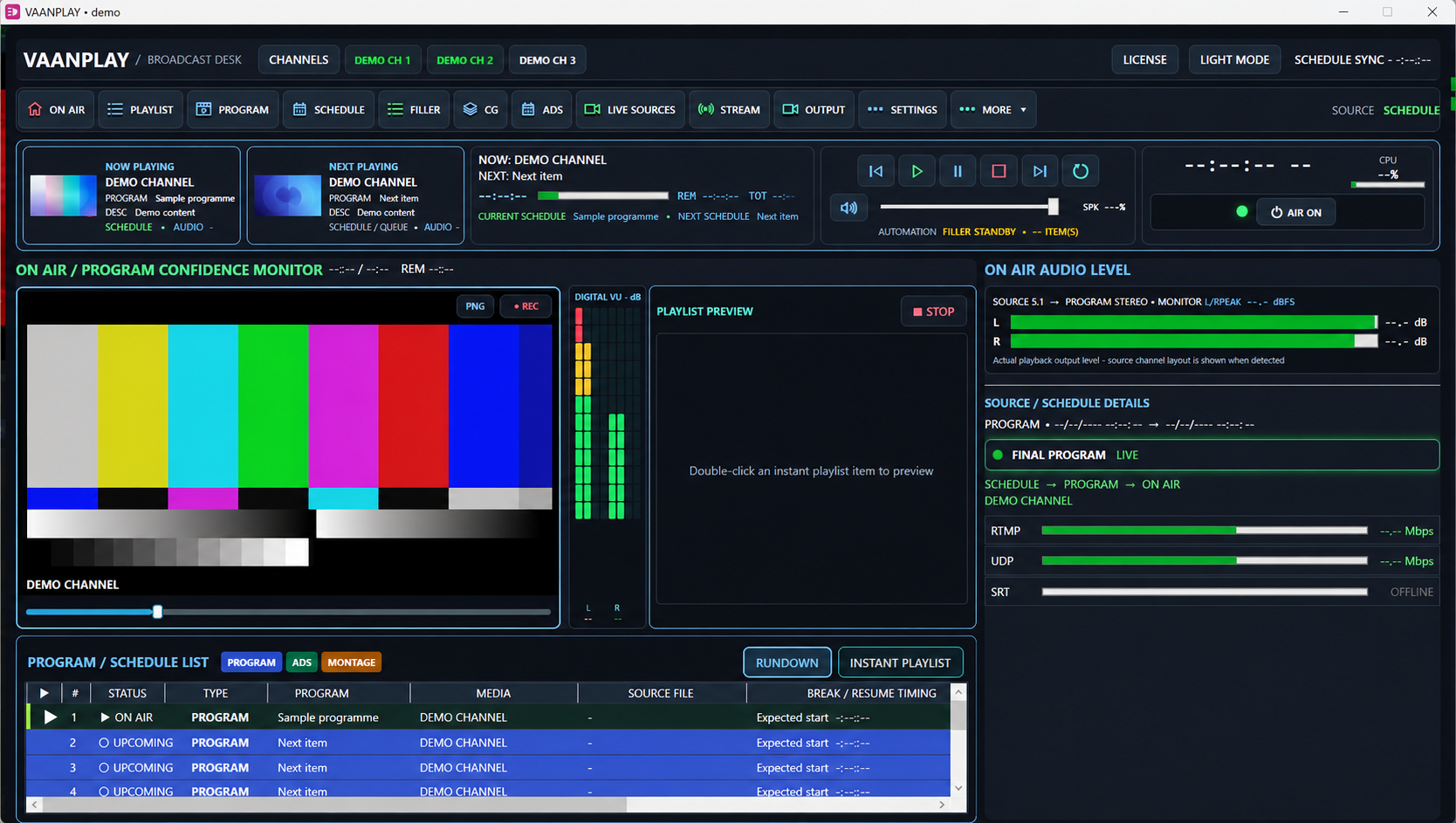 ONE DESK · PLAYLIST · PREVIEW · OUTPUT
Redacted V223 demonstration image · not live output
01 THE PRODUCT
VaanPlay is Windows playout software by SR Network. Its client, channel server and preview player each support a distinct part of the operator’s day.
Arrange the playlist and schedule, then see what is coming up.
PLAN & OPERATE
Run the selected programme output for the channel.
RUN THE CHANNEL
Open a media file and inspect the picture before it goes to air.
CHECK THE MEDIA02 SEE THE WORKSPACE
These views come from the redacted V223 demonstration screen. Each one shows a specific part of the operator's daily work.
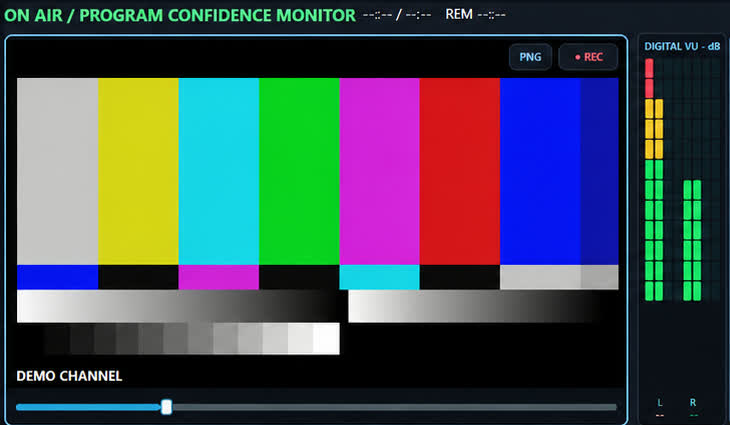 01 / WATCH
The confidence monitor shows the composed picture while the operator checks playback and timing.
Explore the on-air desk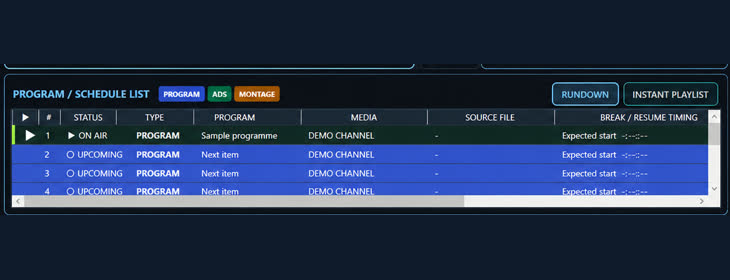 02 / PLAN
Programme and schedule rows show what is on air and what is coming up next.
Explore scheduling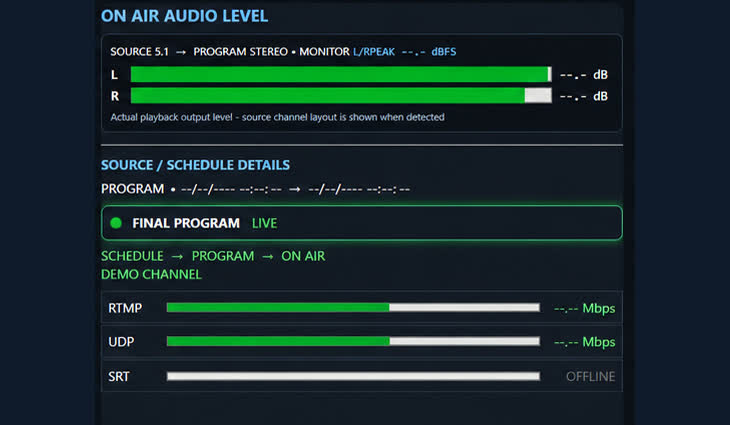 03 / DELIVER
Audio levels and route indicators help the operator confirm the intended output path.
Explore output controlsDemonstration content replaces channel names, media and measurements. The complete operator screen is shown further down this page.
03 WATCH THE CHANNELS
Open SR Musix or Isai Charal in the website player. Playback starts when you select a channel, so visiting the page does not start two streams or two audio tracks at once.
Music channel
Second channel
Both channels play through a secure connection. Select one channel at a time; the other player closes automatically.
04 INSIDE THE PLAYOUT
This VaanPlay V223 interface shows the on-air monitor, current and next items, schedule, audio levels and stream status in one place.
VERIFIED FROM THE V223 SOURCE
Availability depends on the license, channel setup, hardware and individual media file.
Self-contained desktop build with separate Client, Channel Server and Preview Player executables.
The current catalog supports five channel profiles. Running-channel allowance also depends on the license.
File picker includes MP4, MKV, MOV, MXF, MPEG and TS. Decoding depends on the file and runtime.
Streaming controls and output monitoring are present. Encoding and destinations are configured per channel.
Prepare programme lists, timed items and fallback filler from the broadcast desk.
Graphics, ticker and live-source workspaces are included in the playout interface.
05 THE WORKFLOW
The operator moves through one practical sequence: prepare the running order, inspect the next item and monitor the chosen output.
Discuss your channel setupAdd media and organise the running order for the channel.
Check the file and its presentation before broadcast.
Monitor the channel server and selected UDP or RTMP output.
06 LICENSING
VaanPlay has an offline license path. An online licensing service is being prepared and will be announced after deployment and verification.
Activate on the channel PC without a continuous internet connection.
Planned activation and renewal through a secure license service after deployment and verification.
07 LET’S CONNECT
Ask about VaanPlay or discuss a demonstration for your channel.
DEMO REQUEST A DEMONSTRATION
Tell us about your channel. Send this form and SR Network will contact you to arrange a demonstration.