VAANPLAY / PRODUCT GUIDE

From the next clip
to the final output.

Each workspace has a specific job. This guide explains what the operator can see, prepare and control in VaanPlay V223.

Feature availability depends on the license, connected hardware, FFmpeg runtime and the media being played. Screens and output should be checked in the intended channel setup.

01 THE OPERATOR DESK

Know what is happening
on air.

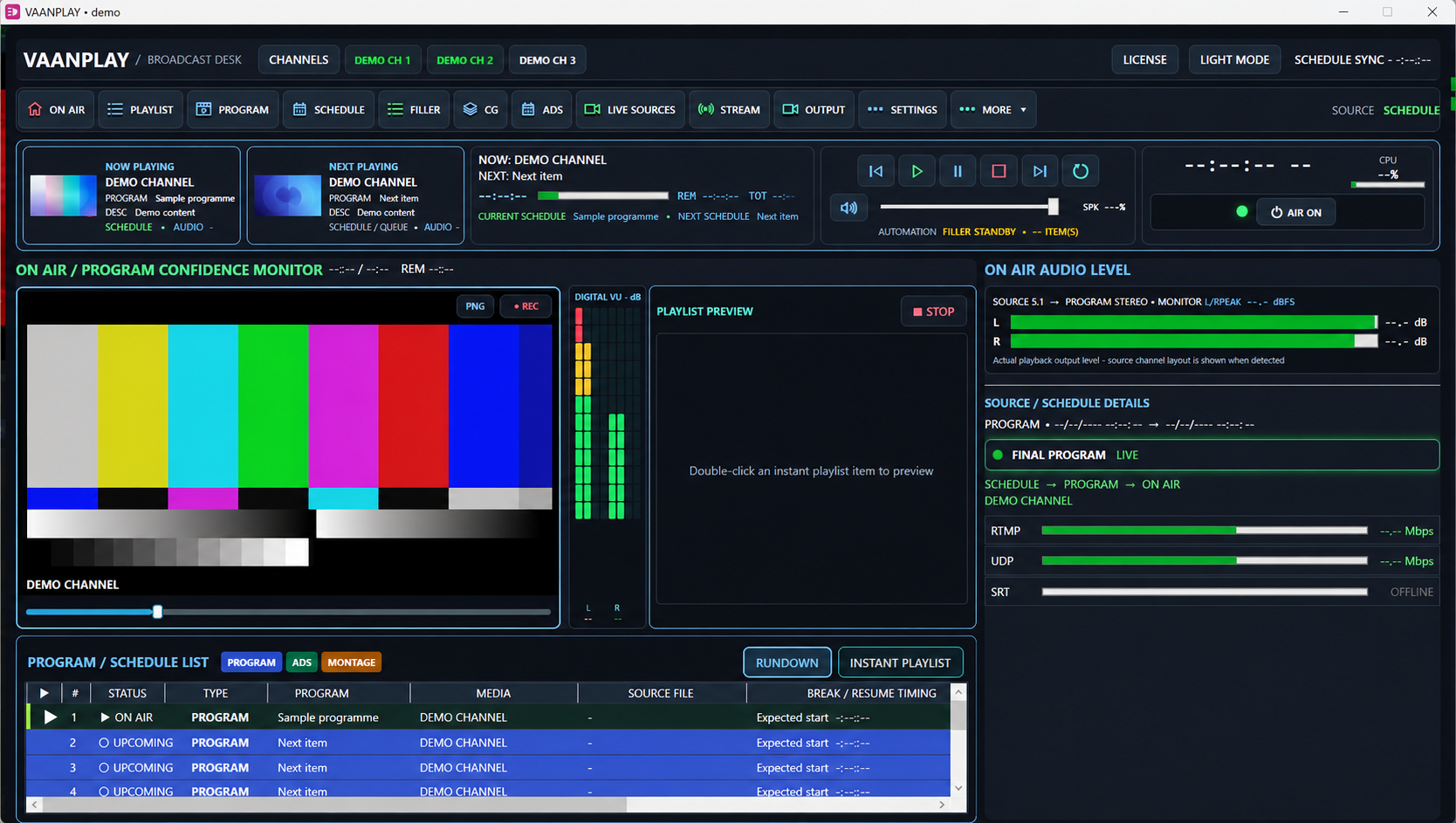
The V223 screen brings the current item, next item, confidence picture, running order, audio levels and network output status into one view.

VAANPLAY V223 · REDACTED DEMONSTRATION17 OCT 2026
VaanPlay V223 broadcast desk with demo media and masked channel details, showing now and next, rundown, audio meters and output health
Based on the VaanPlay V223 operator screen. Live channel names, programme imagery, file paths, times and metrics have been replaced with demonstration content for public display.
01 / ON AIR

Program confidence monitor

Shows the composed programme picture with its item name, elapsed and remaining time. The operator can check the visible result while a channel is running.

How it is used Watch the picture and timing before taking the next action; the adjacent seek control is for the current on-air media.

02 / CONTINUITY

Now, next and rundown

Now and Next identify the current file and the following item. The rundown shows item type and status, so the operator can see the order around a scheduled break.

How it is used Check the next item and schedule line before a handoff, then use the dedicated playback controls when manual intervention is needed.

03 / LEVELS

Audio and output health

Audio meters show the programme level. Separate RTMP, UDP and SRT indicators show whether each configured route is active and its current reported bandwidth.

How it is used Confirm programme audio and the intended output route on the desk; an offline indicator means that route is not currently publishing.

04 / REFERENCE

Capture the result

The desk includes a PNG frame capture and a programme recording control for checking the composed picture and audio after a test.

How it is used Capture a still or reference recording during a controlled check, then compare that result with the source and the received output.

02 PREPARE & AUTOMATE

Build the running order.
Plan the time.

Prepare media before it reaches the programme output, then decide when the channel should take it.

PROGRAM / PLAYLIST

Reusable programmes and an instant list

PROGRAM is the workspace for building a saved sequence. The instant playlist is available for media that needs to be queued directly from the desk.

Operator flow Add files in the required order, check the item list, then choose the prepared programme or instant item for playout.

SCHEDULE

Timed channel events

SCHEDULE stores planned programme entries and shows the current and next scheduled event. The editor exposes auto start, exact programme time, fixed end and filler fallback options.

Operator flow Select a prepared programme, set its time and review the saved row. Check the next schedule indicator on the on-air desk.

FILLER

Fallback media

A separate filler list can be held on standby for gaps in the planned running order. The dashboard shows its standby state and item count.

Operator flow Prepare suitable fallback content and enable filler fallback for the relevant schedule; verify the intended takeover off air before relying on it.

ADS

Break preparation

ADS provides a workspace to create, save and schedule an ad programme. The manual live take is a separate action from saving or scheduling a break.

Operator flow Build the ad sequence, place it at the required schedule point and check its position in the rundown.

03 PICTURE & PRODUCTION

Check the file.
Compose the screen.

Preview, graphics and live inputs each have their own controls so operators can prepare the programme picture.

PREVIEW PLAYER

Inspect media before air

The separate Preview Player opens a file for picture, audio and timing checks. It has fit, aspect and seek choices for viewing source media.

Operator flow Open the intended file, inspect key moments and audio, then return to the rundown. Preview shows source playback; final programme adjustments and encoders are separate stages.

CG / GRAPHICS

Build overlays

The CG workspace includes saved compositions for text, images, logos, clocks and tickers. Operators can prepare a design and update the active output when ready.

Operator flow Arrange the required layers, check their placement, save the project and take or update it on air. The ticker editor includes direction and text controls.

LIVE SOURCES

Bring external video into the workflow

The integrated live-source workspace lists hardware, virtual, NDI and network input paths and a multi-input production mixer.

Operator flow Connect and verify a compatible input, inspect its signal, then select the desired source for the programme workflow. Available sources depend on connected devices and configuration.

VIDEO SETTINGS

Control final framing and picture

VIDEO OUTPUT ADJUSTMENT exposes scale and aspect choices plus colour and quality controls for the final programme path.

Operator flow Choose an output mode for the channel, then check both the programme monitor and a received output sample before broadcast. Some aspect choices stretch or crop the source.

04 DELIVER & MONITOR

One programme.
Configured destinations.

The final programme feeds the enabled output routes. Each route has its own destination and health controls.

STREAM

RTMP and RTMPS publishing

The STREAM workspace contains RTMP/RTMPS profiles for an internet streaming destination, with start, stop and status controls.

Operator flow Enter the destination supplied by the platform, save the profile, start it and check the live status and bandwidth indicator.

STREAM

DVB UDP MPEG-TS

UDP sends a transport stream to a configured network address. The workspace also includes programme audio and multi-audio track controls for supported channel setups.

Operator flow Set the receiving address and encoding profile, start the route, then verify the received TS and TV picture as well as the dashboard indicator.

STREAM

DVB SRT MPEG-TS

An SRT transport-stream route is available when the detected FFmpeg runtime supports the protocol. Its status is shown separately from RTMP and UDP.

Operator flow Configure the compatible SRT endpoint and verify the receiving side. A stopped or offline route is not publishing.

OUTPUT

Local and device routing

OUTPUT brings together final programme monitoring and device routes, including a Blackmagic hardware output path where the compatible card is present.

Operator flow Select the installed device and its mode, then check the physical output. Device availability and supported modes come from the installed hardware.

AUDIO SETTINGS

Separate monitor volume from broadcast gain

The desk's SPK slider changes the local monitor speaker only. Broadcast gain, EQ and normalization are set in Audio Settings before the shared programme reaches the enabled encoders.

Operator flow Adjust SPK for comfortable listening; use Audio Settings and the programme meters when setting the transmitted level.

CHANNEL PROFILES

Operate configured channels

The current product catalog includes up to five channel profiles. The running-channel allowance depends on the license and the computer's resources.

Operator flow Select the required channel in the Client and confirm its server, programme and output status before taking it on air.

LICENSING STATUS

Offline activation is available.

The online licensing service is in preparation. This website does not activate a license or sell one.

Discuss your channel